I was working on a project where I happened to implement Branding on SharePoint site. I created/modified the existing CSS Classes to achieve the desired result.
Here are some CSS classes listed below that I modified:
To hide Quick Launch
.ms-quicklaunchouter
{
display:none;
}
#s4-leftpanel-content
{
display:none;
}
.s4-ca
{
MIN-HEIGHT: 324px; BACKGROUND: #fff; MARGIN-LEFT: 0px; MARGIN-RIGHT: 0px
}
Change global navigation background color
.s4-tn
{
background:white;
}
Change the font color of the site actions text
.ms-menu-a span
{
color:black;
}
To hide title logo - breadcrumb
.s4-titlelogo
{
display:none;
}
Make breadcrumb bar height small
.s4-title, .s4-lp
{
background:white;
}
To hide breadcrumb tag & Notes section - breadcrumb
.ms-socialNotif
{
display:none;
}
Change the font color of Browse and Page text in the menu
.ms-cui-tt-span
{
color:black;
background:white;
}
Change the background color of top bar (site actions, browse, page)
.ms-cui-topBar2
{
background:white;
}
Make all menu item color black
.s4-tn li.static > .menu-item
{
color:black;
border-color:black;
}
Menu item background color
.s4-tn li.static a.menu-item
{
background:white;
}
Global navigatioh selected item color red i.e. first tab
.s4-toplinks .s4-tn a.selected
{
color:red;
border-color:black;
}
Global navigation menu item hover - black
.s4-toplinks .s4-tn a.selected:hover
{
color:black;
}
Menu item hover
.s4-tn li.static > a:hover
{
background:white;
border-color:black;
border:thin;
color:red;
}
Change the Action Button background color -Logged on Username
.ms-SpLinkButtonActive a,.ms-SpLinkButtonActive a:hover{
color:red;
text-decoration:none;
background:FFDBAD;
}
Change the background color of the web part header where the Title is 'Working at ABC'
.ms-WPHeader TD[title^="Working at ABC"]
{
background:#FF9900;
}
Change the font color of logged on username
.ms-SPLink A:link,.ms-SPLink A:visited
{
color:gray;
text-decoration:none;
font-size:14px;
font-weight:bold;
text-decoration:underline;
}
Showing posts with label Branding. Show all posts
Showing posts with label Branding. Show all posts
Saturday, April 10, 2010

Create Themes for SharePoint 2010 in PowerPoint
Create a Theme in MS Power Point for SharePoint 2010.
* Select Design tab
 * Click on Colors dropdown on the right then 'Create New Theme Colors'
 * Change the colors as you like then click on Save button.
* Go to Site Actions then Site Settings: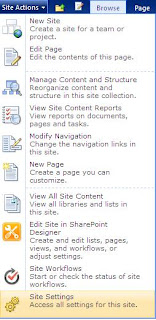
 * The Theme has been uploaded in the gallery. Now activate the theme to see how it looks.
* Go to Site Actions then Site Settings. Click on "Site Theme"
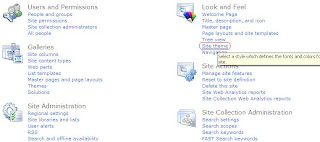
* Select the Orange theme from the list then click on Apply
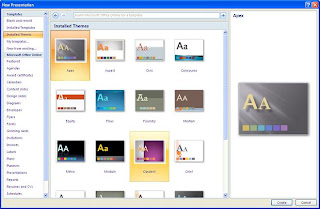
* Open MS PowerPoint
* Office Button --> New
* Under Templates tag select "Installed Themes". Select any theme then click Create button as shown:
* Select Design tab
* Click on Colors dropdown on the right then 'Create New Theme Colors' * Change the colors as you like then click on Save button.* Now you have to save this file as a theme. Click on Office Button
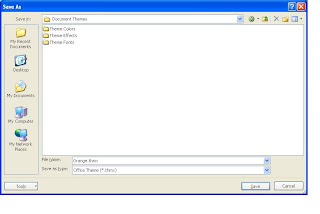
 then click on Save As
* Enter filename and select "thmx" as Type from drop down and click Save.
* Theme is saved by the name of Orange.
Add Theme to SharePoint
Now lets go to SharePoint site and then see how we can add our customized theme to the site.
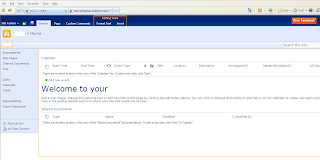
* This is the SharePoint site:
* Go to Site Actions then Site Settings:
* On Site Settings page click on "Themes" under Galleries sections:
 * Click on Upload Document as shown below:

* It will open a File Dialog box where you select the theme which was created in PowerPoint.

* You would see the uploaded theme "Orange" in the list.
* The Theme has been uploaded in the gallery. Now activate the theme to see how it looks.* Go to Site Actions then Site Settings. Click on "Site Theme"
* Select the Orange theme from the list then click on Apply

* Site theme has been changed successfully.

Comments plz.
Thx
Subscribe to:
Posts (Atom)

